
Test your site search like a shopper before Black Friday
Most teams test search with their own product names, and those always work. How to test it the way shoppers type, with an AI assistant doing the typing.
By Lassi Eronen

In Black Friday week a lot of shoppers arrive knowing what they want. They skip the menu, tap the search icon and type it. What happens next depends a lot on the first row of results on a phone.
Most teams check their search by typing their own product names. Those searches always work, because the names came from the catalog. Shoppers type "cream jumper" when you say ecru, "cardigen" when they mean cardigan, and "something warm for a winter walk" when they haven't decided yet.
So test your site search the way shoppers use it. Write the searches they really type. Let an AI assistant that can use a browser run each one in your live store and look at the results the way a shopper would. Then fix what you can before the peak and note the rest for January. Nothing here touches your theme, so it works during a code freeze, and it works whatever search your store runs.
A results count hides the misses
Search reports answer two questions well. What did people search for, and which searches found nothing? They can't tell you whether what was found looked right.
A search for "navy cardigan" that returns 40 products passes every report. It still fails the shopper if the first row shows a navy sweater, a gray cardigan and one that has sold out. Only the screen shows that, which is why the merchants we talk to judge a search engine by typing their own shoppers' searches into it.
Looking takes time. An assistant can do the typing while you judge, and the method works just as well if you type the searches yourself.
Ten kinds of search to test
Pick ten to twenty searches. Start with your search reports. On Shopify they are under Analytics, then Reports, in the Behavior category. Open "Searches by search query" and "Searches with no results" for last November and for the past month. Then add one or two of each kind below, in your shoppers' words rather than your catalog's.
- Their word, not yours. Jumper or sweater, pants or trousers, cream when you say ecru.
- A typo. Cardigen, cashmire, trousres.
- A color and a garment. Navy cardigan, red dress, black wide-leg pants.
- A look or a texture. Chunky knit, oversized, ribbed.
- An occasion, written as a sentence. Something warm for a winter walk, a wedding guest dress.
- A gift. Gift for my mum, a present for him.
- A sold-out bestseller, by name. The shopper doesn't know it's gone.
- Your second language. Pull marine, if you sell in France and your catalog only says navy sweater.
- One word that is your whole range. A knitwear brand still gets searched for "knitwear".
- Something seen somewhere else. The striped one from Instagram.
Next to each search, write what a good first row would be before you look. Otherwise every result starts to look acceptable.
Let an assistant do the typing
Claude in Chrome is an extension on any paid Claude plan. It works in a panel beside the page, sees the page as screenshots and can type into your store's search box. ChatGPT's browser extension can do the same, and in the US so can Gemini's auto browse, Perplexity's Comet and Copilot in Edge.
Open your store in Chrome and make the window as narrow as it goes, so the store switches to its phone layout. Open the assistant, paste the prompt below and add your first five searches at the end, each with the first row you expect. Five at a time keeps each run short.
Three things to know first. The assistant can misjudge a photo, so look at every screenshot and make the call yourself, starting with the ones it marked partly right or wrong. Your test searches will probably show up in your own search reports, so note the day you ran them. And if your store asks a visitor to prove they're human, the assistant stops and hands back to you.
You are testing the search on this online store the way a shopper would. Each search in the list at the end comes with the first row I expect. Type each one into the store's own search box exactly as written, press enter and wait for the results page. Look only at what a shopper would see on this screen, the first row of products with their photos, names and prices, and any message such as "no results". For each search, say in one line what the shopper most likely meant. Then compare the first row with what I expected and judge it right, partly right or wrong, by what the photos show (the garment, the color, the look) and not only by the product names. Say if a sold-out product shows first or if the page is empty. If the first row is wrong, scroll once and say whether the right product appears further down. Take a screenshot of every first row. Do not add anything to the cart, sign in or buy. At the end, give me a table of every search with your verdict and one line of why.
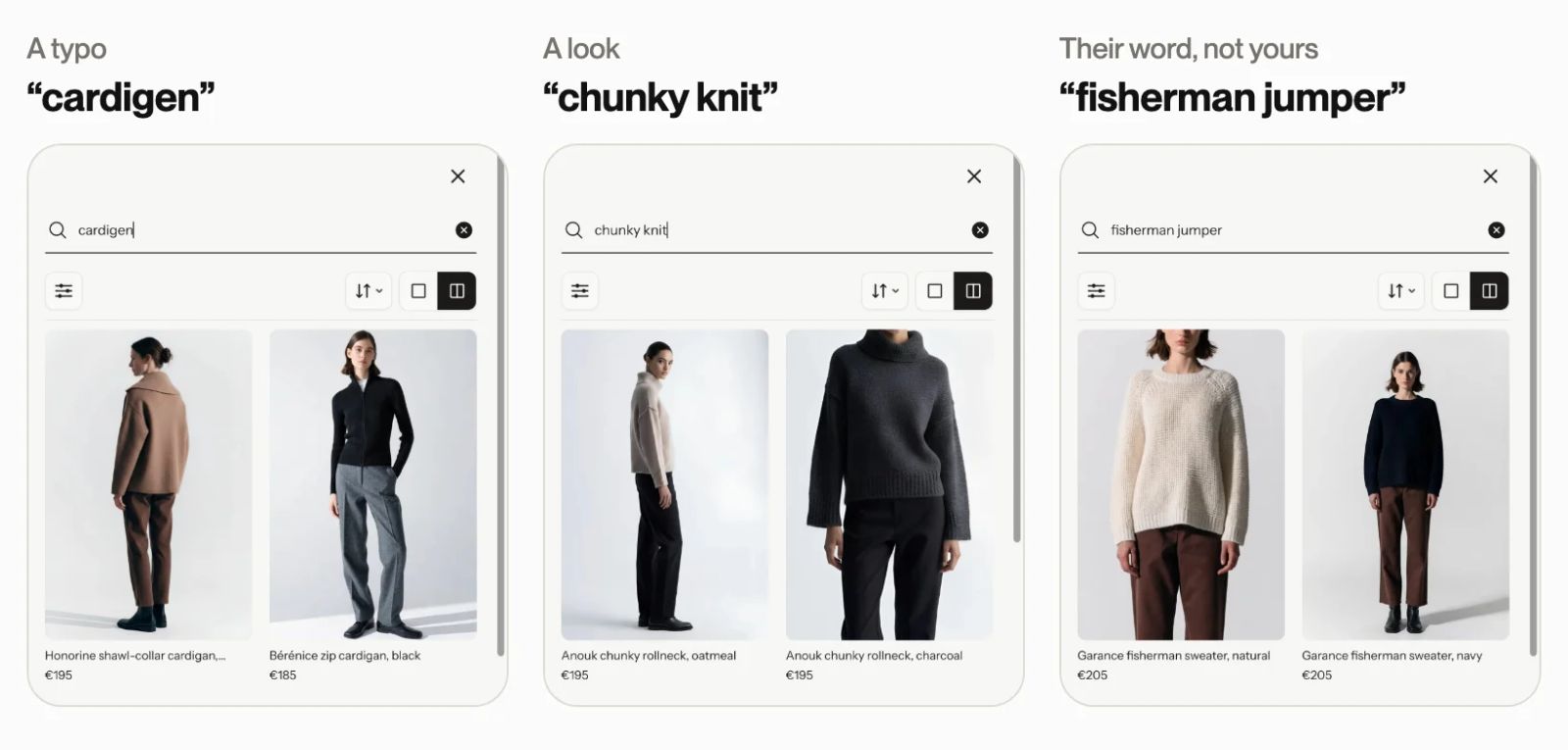
Three searches from our own test on Maison, our demo store, which runs Depict search. All three first rows came back right.
What a miss looks like
Most misses fall into a few shapes.
- An empty page. The shopper leaves, or tries once more and then leaves.
- The right words, the wrong look. For example, a "black dress" search led by black tights, because the tights' description mentions dresses.
- The right product, too far down. It's there on row three, under products that only share a word with the search.
- A dead end on a sold-out favorite. The shopper typed its name and got nothing, when a similar piece in stock was one search away.
- The wrong language. Nothing in the catalog says what the shopper typed, so search guesses.
Count how many searches came back right on the first row. Run the same list again after your fixes and compare.
Fix it before Black Friday
None of these touches your theme.
- Put the shopper's words in the product text. Most site search reads titles, descriptions, product types and tags. Shopify's own search reads exactly those, and its help says to put the terms shoppers search for near the start of the description. If shoppers say jumper and your catalog says sweater, use both. If you'd rather not touch descriptions this close to the peak, add the word as a tag.
- Work through the searches that found nothing. Fix the top ten with product text or tags. If you use Shopify's free Search & Discovery app, check whether your store still shows a synonyms setting before you plan around one.
- Lift the products that should lead your biggest searches. Search & Discovery's product boosts lift a product for up to 10 search terms. Use them on "sale", "gift" and your two or three busiest searches. Shopify's help is clear that you can't change the order of results in any other way.
- Check where sold-out products land. Shopify puts a product last once every variant has sold out. A product with only a few sizes left keeps its place, so check your sale searches for those.
- Leave the rest for January. A new search, a new layout or anything that needs the theme can wait until the peak is over. Our seasonal merchandising guide has the rest of the four-week plan.
Search reports can take up to three days to update, so check the effect of your fixes next week rather than tomorrow.
Is your search good enough for this peak?
If most of your first rows came back right, yes. Fix the product text, set the boosts, and don't change search in the busiest week of the year.
If the misses pile up, the test has told you something worth acting on in January. The searches that fail are usually the ones written in the shopper's words rather than yours, and that is the part of search Depict is built for. Depict search finds products by what they are rather than only by the words in their names, so you don't have to keep a synonym list. In October, on a live store, it matched years of hand-tuned Algolia in ten weeks, with not one empty results page in 36 searches. On that store, shoppers searching in American English for a product the store names in British English found 49 products with Depict, every one the thing they asked for, where the hand-tuned Algolia found 4.
The order stays yours. With Depict, the Boost & Bury rules you set for your collections also order your search results, and you choose what search leaves out. It gets better every night, under your rules.
Depict is search and merchandising for fashion brands on Shopify, Centra and headless stores. The fairest way to judge any search is the test in this post. Book a demo for January and bring your list.