
Depict now works inside Claude and ChatGPT
Connect Claude or ChatGPT to Depict and ask your merchandising a question in plain words. Shopify's connector runs your store; Depict's runs your merchandising.
By Lassi Eronen
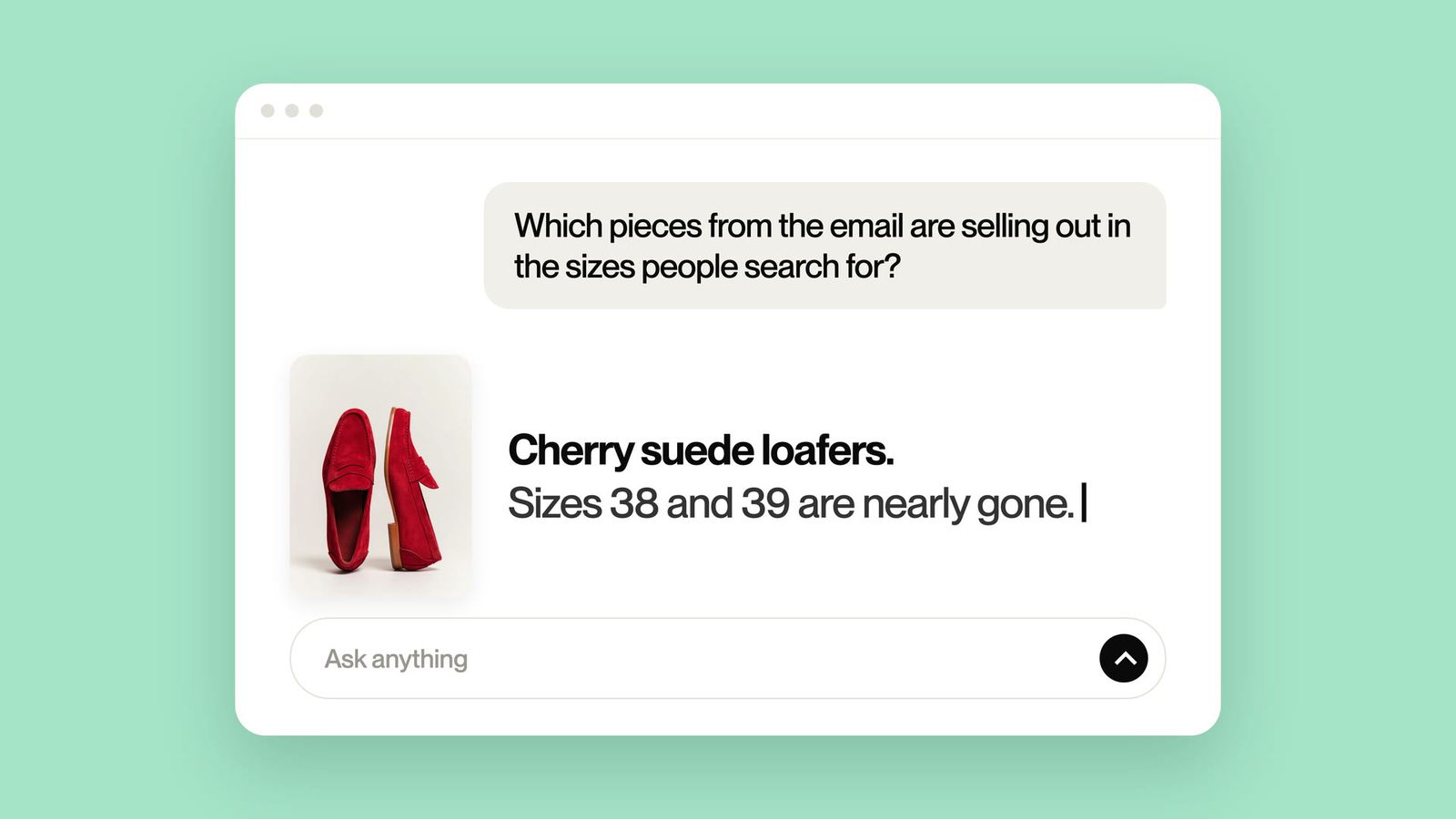
Every Depict merchant can now connect Claude or ChatGPT to Depict and ask their merchandising a question in plain words. Why are the cherry suede loafers on the third row of New In? Which searches found nothing this week? When the answer calls for a change, you approve it and the assistant makes it. Shopify's own connector already lets your assistant run the store. Depict's lets it run your merchandising.
Your week, with an assistant
Depict already keeps your collections in order as stock and sales move. What it never did for you was the work around that. Building the weekly report. Working out why one style is buried. Deciding what to do about the searches that fail. Getting a drop's order live at the right minute, and back again after.
Ask for your weekly trading meeting and the assistant pulls last week from Depict. What moved, what gets clicked but never bought, which styles sell from the third row and deserve the first, which bestsellers are running out of sizes. One early-access brand has its assistant rebuild its weekly merchandising report this way. Another asked it to trim the pins in a collection to the products still earning their place, and to suggest which unpinned bestsellers deserved one.
It also explains Depict itself, from how a collection's order is built to what the performance score means. Useful the next time a new colleague asks why the grid looks the way it does.
Changes, made the way you would make them
If you allow changes when you connect, the assistant works on your merchandising the way you would in Depict. It pins products in the order you choose and edits your Boost & Bury rules. It switches Depict on for a collection, hides a product from search, and pins products in your recommendation rows. It publishes a new collection order straight away, or schedules it for the minute a drop goes live and schedules your usual order back for when the drop ends.
Here is what that looked like for one early-access merchant. They asked their assistant for a 30-day report with improvements. It came back with proposed rules for their main collections, best sellers first and sold-out styles at the bottom, and showed the new order on the real collections before anything went live. It saved the old setup and a baseline so the change could be measured and rolled back. The merchant approved, the assistant ran it on one collection, checked the live result, and then rolled it out to the rest.
Connect Shopify's connector too, and ask across both
Shopify publishes its own connector for Claude and ChatGPT, and it is the first thing we tell merchants to connect. It sees your orders, stock, products and sales. Depict sees how each collection is ordered and what that order earns, what shoppers search for, and what your recommendations sell. With both connected, your assistant answers the questions that sit between them.
An early-access merchant asked theirs to take the products that keep coming back out of the pins. Returns live in Shopify and pins live in Depict, so until now that was an afternoon with two exports. Connect your email platform as well and you can ask for the Linen collection to open with the six pieces in Thursday's email from the minute it sends, and switch back on Monday.
What stays in your hands
Changes are off until you allow them when you connect, and Claude asks before each one unless you tell it to stop asking. You approve every connection in your Shopify admin and can revoke it there whenever you like. Boost and bury rules never move a pinned product, and the assistant only touches a pin when you ask. Billing, your theme and image uploads are out of its reach.
Connect in a few minutes
Included in every Depict plan, on Shopify and headless.
- In Depict, open Settings, Connections and copy your store's address.
- In Claude, open Customize, Connectors and add it as a custom connector. In ChatGPT, add it as a plugin in developer mode, on a paid plan.
- Approve the connection in your Shopify admin.
- Turn on Depict in a chat and ask your first question.
On a headless storefront, the steps are in the Depict portal.
The setup guide covers Claude, ChatGPT and Codex step by step, and the walkthrough video shows the whole thing in a few minutes.
Already on Depict? Connect your store and ask what sells well but sits too low. New to Depict? Install Depict: Search & Merchandising from the Shopify App Store, free for three collections, or book a demo.